
Setting Google Home up with JellyFish Lights
1 – Download and open the Google Home app
2 – Login to your Google account in the Google Home app
3 – Go to the “Devices” section
4 – Press the “+ Add Device” button in the middle of the screen

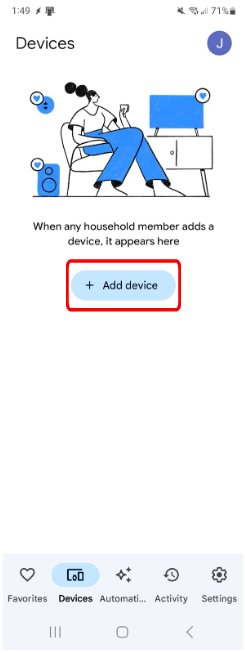
5 – Press “Works with Google” and search for JellyFish
6 – Follow the instructions and sign into your JellyFish Cloud account when instructed to
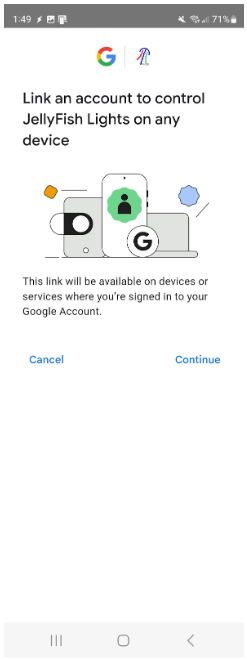
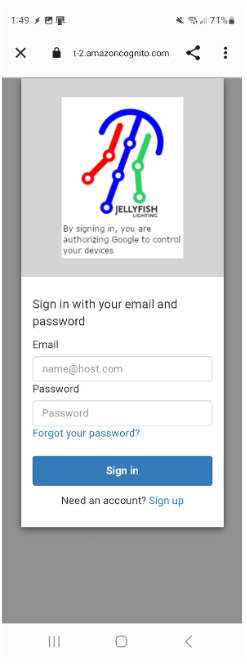
7 – You are done! Your devices will appear in the Google Home app shortly
Using Google Home with JellyFish Lights
Devices
- Shortly after linking your JellyFish Lights with Google Home, a number of devices/lights will appear on your Google Home app
- There will be one device for every zone you have between all your JellyFish controllers
Smart Home commands
Capabilities are: Turn lights on/off, change the brightness, set a single color
- Automation lights are explained earlier on in this document
- Example zone used: Front of House
-
Turning the lights on and off
- “Ok Google, turn on Front of house”
- “Ok Google, turn Front of house off”
-
Changing the brightness of the lights
- “Ok Google, change Front of house lights to 50 percent brightness”
- “Ok Google, increase brightness of Front of house lights by 25”`
-
Playing a single color
- “Ok Google, set Front of house to warm white”
- “Ok Google, turn Front of house blue”