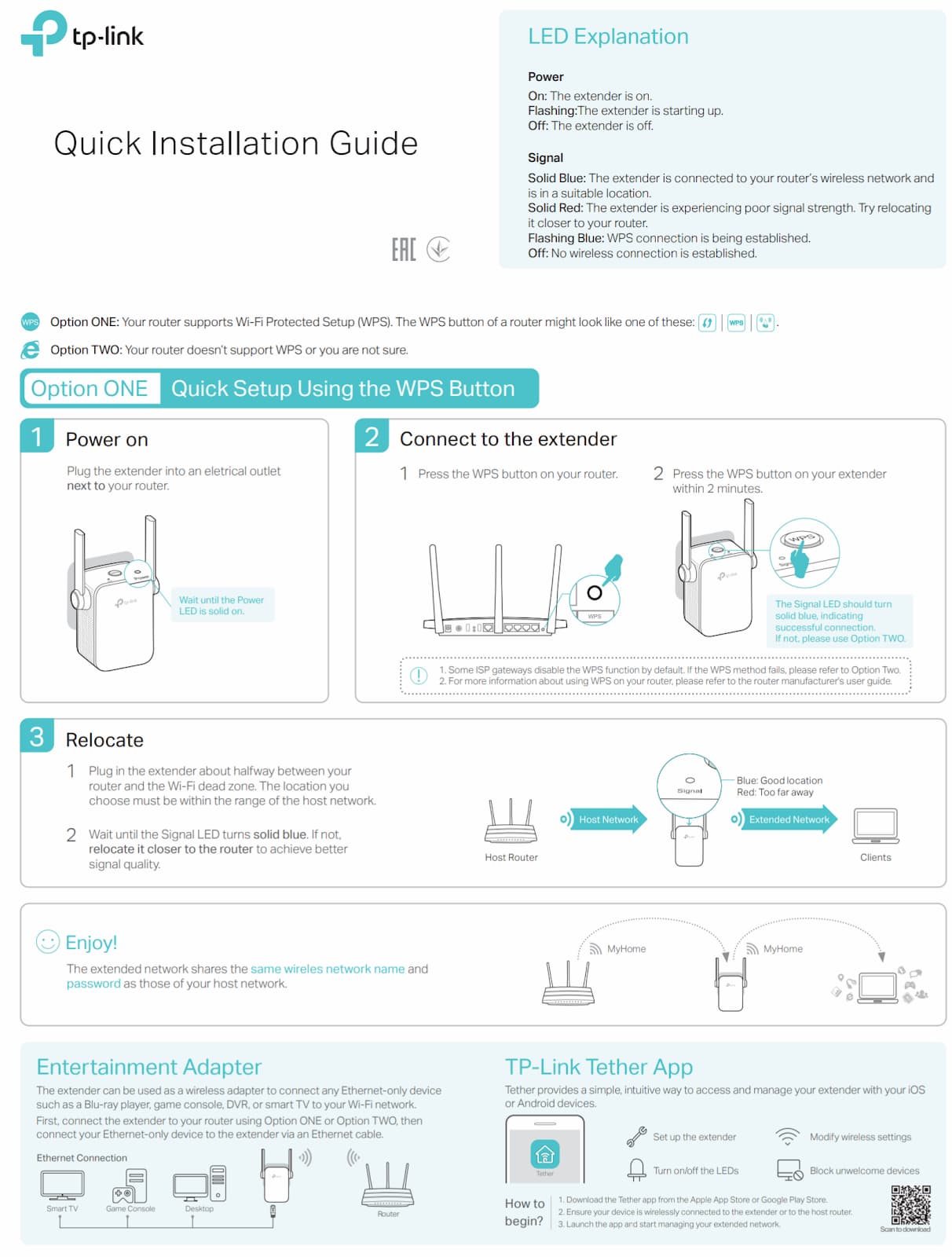
TP-Link WiFi Extender
The goal is to install the lighting system, get it connected to the home network, and leave with they system set up ready to run. Jellyfish Lighting has added a PINGING tool into the system to check the reliability of the connection between the controller and home router or WiFi antenna.
NOTE: IF POSSIBLE WE ALWAYS RECOMMEND HARD WIRING YOUR CONTROLLER TO YOUR ROUTER WITH A CAT6 CABLE.
PINGING
When you look at the screen of your controller, you will see two lines of information. On the far right of the top line you will see a * followed by a number. The system has been designed to ping your home Router via the WiFi once every 5 seconds. The number you see correlates with the number of pings received back.
– *0 means no pings were received back. You need a WiFi extender
– *1 through #6 means pings are being received but you still have a week signal or some interference
– *7 to *8 means your connection is fairly strong. If you experience issues, you may want to consider a WiFi extender
– *9 is a strong stable connection. 10 out of 10 pings are being received back. You have a strong stable connection. If you hare experiencing issues, it is not the connection between the controller and router
* Indicates you have a WiFi connection
# Indicates you have a hard wire [CAT6] connection
NOTE: IF YOU DON’T SEE THE * FOLLOWED BY NUMBER, YOU NEED TO DO A FIRMWARE UPDATE
SCENARIO #1 – RELAY
When setting up a WiFi extender as a relay
#1 – Find a midway point between the controller and home router (WiFi Antenna)
#2 – Plug the WiFi Extender into an outlet near the midway Point
#3 – Push the WPS button on the router
#4 – Push the WPS button on the WiFi Extender
#5 – They will pair with each other
#6 – Finish your controller set up
What situations might require this form of set up?
#1 – When the distance between the controller and router is too great (maybe greater than 40 to 50 feet)
#2 – When there difficult barriers for the WiFi signal to penetrate (like brick or stone walls)
SCENARIO #2 – HARD WIRE TO CONTROLLER
When hardwiring WiFi extender to the controller
#1 – Plug a CAT6 cable into the ethernet port inside the controller
#2 – Plug the other end of the CAT6 cable into the WiFi Extender
#3 – Plug the WiFi extender into an outlet or power strip next to the controller
#4 – Finish your controller WiFi setup
What situations might require this form of set up
#1 – When the router is in close proximity to the controller but will not connect
#2 – When a home network is only using the 5ghz WiFi signal the WiFi Extender is Dual Band
#3 – When unknown network issues may be interfering with a stable connection
#4 – When the 5ghz signal is being found and not being released
STANDARD TP-LINK SET UP